
How to take product photos with your phone
A recent phone takes product photographs good enough to sell from, on an iPhone or an Android, as long as you stop it making the decisions it makes for snapshots. Phones are tuned to make people and views look good at a glance: they brighten, smooth, sharpen and blur backgrounds on their own. For a product you want the opposite: the real colour, the real texture, and every part of it in focus. This guide covers the settings and habits that get you there, and finishes with what eBay asks of listing photos.
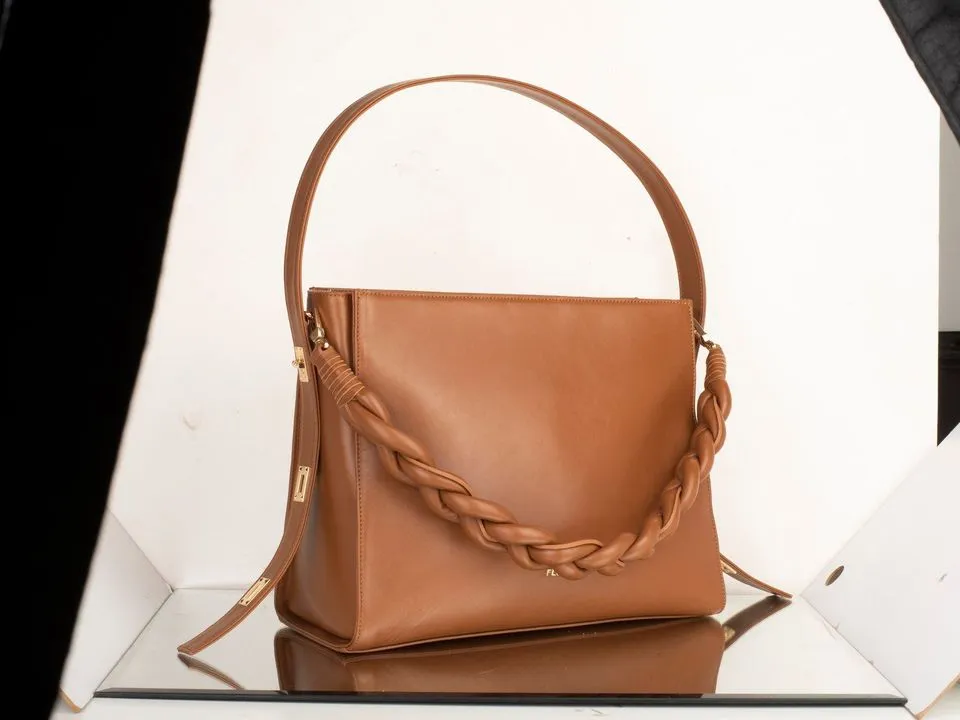
The examples are real client photographs, shown with permission: the before as it was shot, the after as it was delivered.
Use the right lens
Most phones have two or three cameras behind one camera app. For products:
- Use the main (1x) camera or the telephoto (2x, 3x or more). These have the best sensors on the phone.
- Avoid the ultra-wide (0.5x). Close up it stretches whatever is nearest the lens, so a bottle's neck looks too big and a box looks tapered.
- Do not pinch to zoom beyond the lenses you have. Digital zoom enlarges pixels rather than recording more detail. Move closer instead.
- Step back and use the telephoto for anything with straight sides. A longer lens from further away keeps proportions true and keeps you out of reflections.
Some phones switch to a cropped image from the main camera when the telephoto does not have enough light, and some switch to the ultra-wide for close-up "macro" shots. Both are fine for a detail shot; check the result before you rely on them for the main photograph.
The settings to change
- Turn on the grid. On an iPhone it is in Settings, Camera, Grid; most Android camera apps have it in their settings. Use it to keep the phone level and the product straight.
- Turn off the flash. A flash next to the lens makes a flat image with a hard shadow behind the product and a hot spot in anything shiny.
- Do not use portrait mode. Its background blur is calculated, not optical, and it often blurs the edges of the product along with the background.
- Avoid night mode and filters. Night mode blends many frames and smooths texture; filters change colour.
- Lock focus and exposure. Press and hold on the product until the camera shows a lock (AE/AF Lock on an iPhone), then drag the brightness slider down slightly if the brightest part of the product is losing detail. The setting then stays fixed between shots.
- Consider RAW. iPhone Pro models offer Apple ProRAW, and many Android phones offer RAW in a pro or expert mode. RAW files keep more detail in highlights and colour for editing, at the cost of much larger files.
On file format: iPhones save HEIC by default. Etsy and eBay both accept HEIC, but some websites and older software do not. If you need JPEG, choose Most Compatible in the iPhone's camera format settings.
Keep it still
Phone sensors are small, and indoors the camera slows its shutter to gather light, so a hand-held phone easily shakes a product photograph enough to soften it. A small tripod with a phone clamp is the single most useful thing to buy. Use the self-timer, a Bluetooth remote or, on an iPhone, the volume buttons on wired headphones, so pressing the shutter does not move the phone. A tripod also keeps the angle and distance the same from one product to the next, which is what makes a range look like a range.
Clean the lens
A phone lens lives in a pocket. A fingerprint on it adds a haze over the whole image and a glow round bright areas that no setting removes. Wipe it with a microfibre cloth before every session.
Light and background
Everything about light applies to phones as much as cameras, and more so, because a phone in poor light compensates with processing. Put the product near a window without direct sun, to one side, with a sheet of white card opposite to fill the shadows. Turn the room lights off so there is one colour of light. Use a plain background, white card curved up a wall, so the phone exposes for the product rather than for a busy scene. Our guide to lighting for product photos goes into more detail.


A plain cloth works as well as card if it is pressed flat, as the bowls above show. The background can be made white afterwards; a photograph that is blurred or burnt out cannot be repaired.
Angles and distance
Hold the phone at about half the product's height for anything upright, so the sides do not lean, and directly above for flat lays, level, using the grid. Shoot the same set of angles for every product: front, back, side, three-quarter, a detail and something showing scale. Leave space round the product so it can be cropped to a square or a landscape frame later without losing an edge.


Photos for eBay
eBay publishes its rules in a picture policy and its advice in a help page on adding pictures to your listings. As they read on 30 October 2026:
- Size. Photos must be at least 500 pixels on the longest side. eBay recommends images of about 1600 by 1600 pixels.
- How many. At least one is required; you can add up to 24, and eBay recommends more than one.
- No additions. No added borders, no added text, artwork or marketing material, and no watermarks of any kind.
- No stock photos for used items. Stock photos are not allowed for used, damaged or defective items. Photograph the actual item.
- Files. JPEG, PNG, GIF, TIFF, BMP, WEBP, HEIC or AVIF, each no larger than 12MB.
The same help page advises displaying items in an uncluttered space against a neutral backdrop, avoiding flash and overhead lighting to reduce glare, using a tripod or a timer, capturing several angles with the main photo showing the whole item from the front, and showing any flaws, scratches or imperfections in clear close-ups. Check both pages on your own eBay site before you rely on a number, as eBay updates them.
The flaws advice matters most. A buyer of a pre-owned item is deciding how much to trust you, and a clear close-up of a scuff, with a ruler or a coin beside it for scale, does more for that than any amount of polish on the main photo. Edit for presentation (a clean background, true colour, the whole item straight in the frame) and never to hide condition.

What to leave for editing
Phone photographs usually need the same few things: the background taken to white or a clean colour, the light and colour evened across a batch, the product straightened, dust and marks removed. Those are quick edits on a photograph that is sharp and well exposed. What cannot be fixed is the phone's own damage: portrait-mode blur on the product's edges, smoothing from night mode, digital zoom, or camera shake.
If you would rather keep shooting and leave the editing, our cut-outs put phone photographs on pure white or any background, with the product's edges drawn by hand.
Before you list
- Main or telephoto lens, not ultra-wide or digital zoom?
- No flash, portrait mode, night mode or filter?
- Sharp at 100% where it matters?
- The real colour, checked against the item in daylight?
- For eBay: no borders, text or watermarks, and the actual item, flaws shown?
More on setting up at home in how to take product photos at home.
Real client images, shown with permission, from the archive of Product Packshot, the Essex product photography studio of Picarm co-owner David Forcina.