
How to get a pure white background on product photos
A pure white background is the most common thing marketplaces and shops ask for, and one of the hardest things to get straight out of a camera. A background that looks white to your eye usually comes out light gray, with a darker patch behind the product and a gradient towards the corners. There are two ways to fix that: light the background so the camera records it as white, or photograph the product well and take the background out afterwards. This guide covers both, and how to tell which one is worth your time.
The examples are real client photographs, shown with permission: the before as it was shot, the after as it was delivered.
What "pure white" actually means
On screen, pure white is a pixel at full brightness in all three channels: 255, 255, 255 in an 8-bit file, or #FFFFFF. Amazon's main-image rule asks for exactly that. Anything less is a very light gray, and next to a page that is itself pure white it shows: the photograph sits on the page as a gray rectangle instead of the product floating on the page.
You can check a file in any editor with a color picker. Click the background in the four corners and in the middle behind the product. If every reading is 255, 255, 255 the background is pure white. If the corners read 240 or 230, it is not, however white it looks on its own.
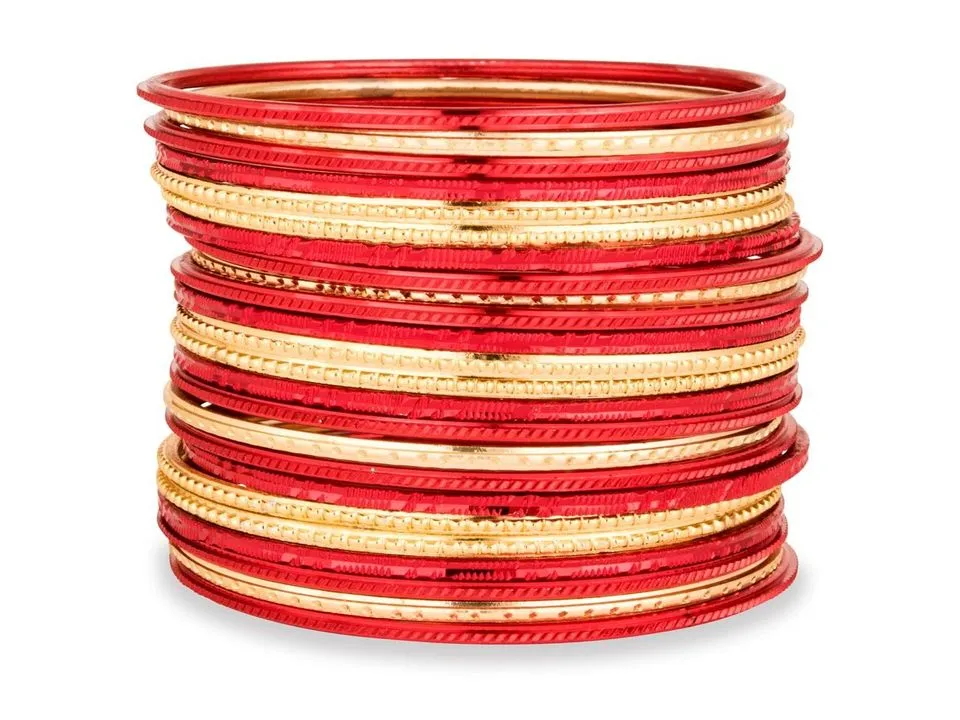
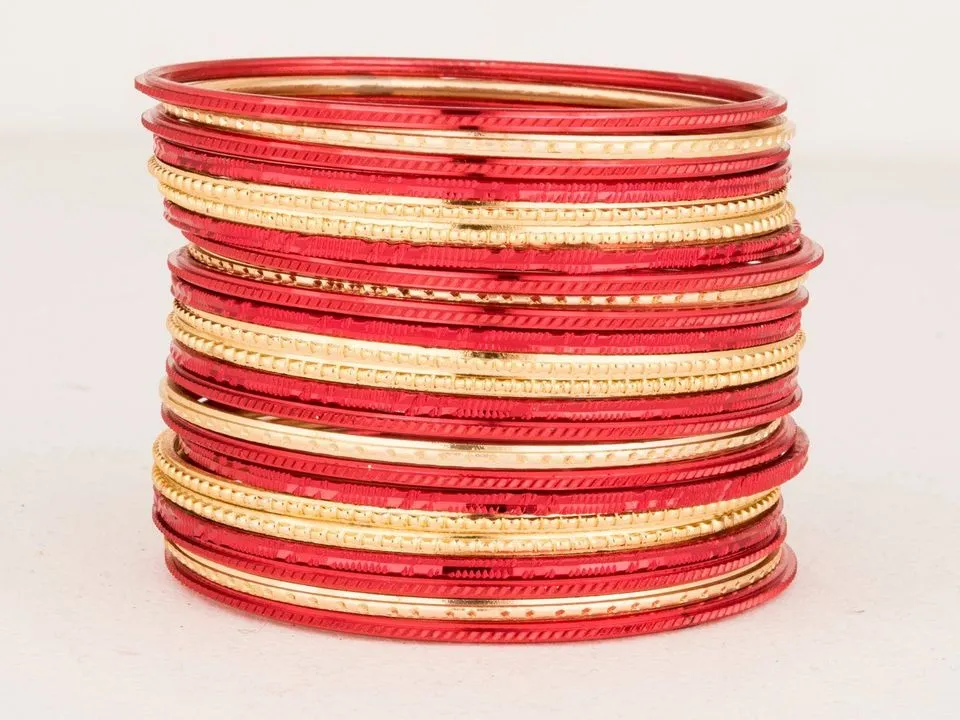
Why a white background comes out gray
A camera's meter is built to make whatever it sees come out as a mid-tone. Point it at a lot of white and it darkens the exposure to compensate, which is why a white sweep comes out gray and the product comes out dark. That is the first problem, and it is the easy one: add exposure, or set it by hand.
The second problem is light falling off. A sheet of white card behind the product gets less light than the product does, because it is further from the light, and less again towards its edges and corners. Even with the exposure right for the product, the background is darker than white and uneven. The third is the shadow: the product blocks some of the light that would reach the card behind it, so there is a gray patch exactly where you least want one.
Route one: a white background in camera
To get true white without editing, the background has to be lit separately from the product and made brighter than it. Studios do this with one or two lights aimed only at the background, set so the background records a little over pure white while the product is exposed normally.
- Move the product away from the background. A meter or more if the room allows. The gap stops the product's shadow landing on the backdrop and lets you light the two separately.
- Light the product with your main light and a reflector, and set the exposure for the product: detail in the brightest part of it, nothing burnt out.
- Light the background with a separate light (or two, one each side) pointed at the backdrop, not at the product. Turn it up until the background reaches white in the camera's highlight warning or histogram.
- Stop there. A background lit far brighter than it needs to be bounces light back towards the lens and wraps round the edges of the product, which softens them and lowers contrast. Just past white is enough.
- Block stray light with black card (studios call these flags) between the background lights and the lens.
The surface under the product is the hard part. A table top is lit by the same light as the product, so it rarely reaches white along with the wall behind. Shooting on white acrylic or glass helps, and gives a reflection under the product; lighting the floor of the set from below or from the side is another studio technique.

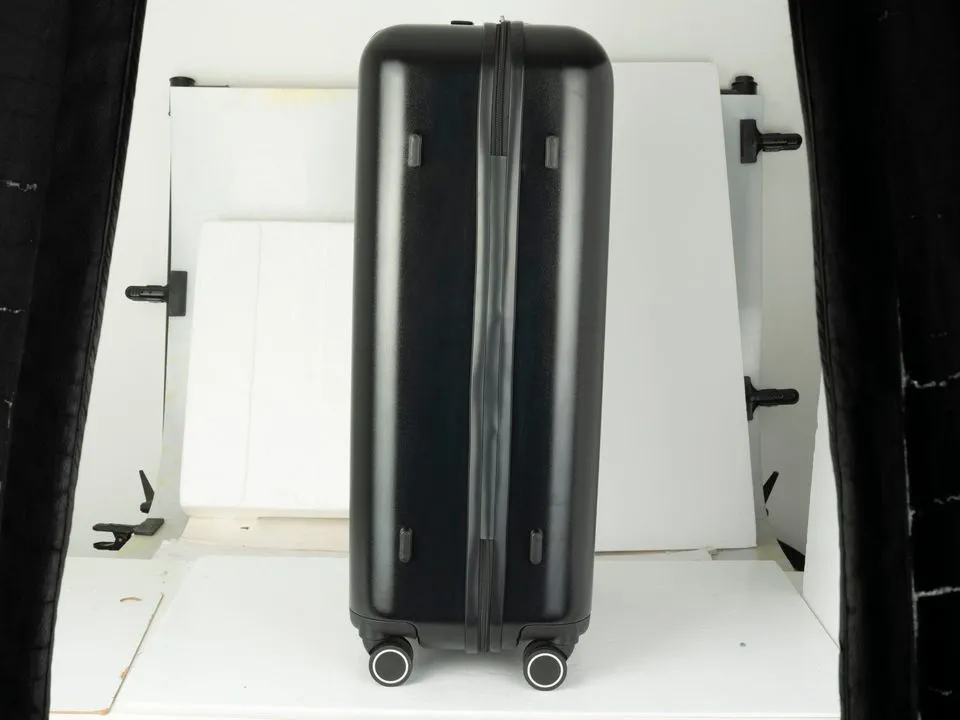
The suitcase above was shot in a studio, in a cove of white boards held up with clamps and a black curtain at one side. Even there the boards, clamps and curtain end up in the frame, and the floor of the cove is not pure white. The delivered file is a cut-out.
What a home set-up can do
At home, with a window and a curved sheet of white card, you can get the background clean, smooth and very light. You usually cannot get it to pure white without burning out a light-colored product along with it, because there is only one light and it lights everything equally. A light tent gets closer, because it surrounds the product with diffused light, and there is a guide to using a light box for product photos.
So for a home set-up, aim for a background that is light, even and smooth, with the product well exposed, and treat the final step to white as an edit. A light, even background is also what makes that edit fast and clean.
- Use white card or paper that is clean and uncreased. A crease or a mark is a line to remove later.
- Curve it from the wall onto the table, so there is no horizon line.
- Put the product forward of the curve, not on it.
- Use a reflector on the shadow side to keep the light even across the background as well as the product.
- Expose for the product, not for the background.
Route two: take the background out
The other way is to photograph the product on anything plain, then cut it out and place it on pure white. This is what most product photographs on white actually are, including many shot in studios. A cut-out also makes every image in a range sit on an identical background, which in-camera white struggles to do across a day's shooting.
How the cut-out is made matters more than the method's name. Automatic background removal is quick and is fine for simple shapes in good contrast. It struggles at the edges that matter most to a buyer: hair and fiber on fabric, chain links, the inside of a handle, the gap between a bag's strap and its body, clear glass and white products on a light background. Those are the edges where a hand-drawn path (a clipping path) earns its cost.


A shot on a colored cloth is easier to cut out cleanly than a shot on a creased or patterned surface, because the product's edge is clear against it. The bowl above was shot on a blue-gray cloth and cut out on white. When you choose a colored backdrop, check the product's shiny surfaces: a strong color close to a glaze or polished metal shows up in it, and a reflected color is much harder to remove than a background.
Shadows and reflections
A product cut out with nothing under it can look as though it is floating. Most shops add something back: a soft shadow on the ground, a contact shadow where the product touches it, or a reflection for glossy products and footwear. If you want a natural shadow, light the product so its shadow falls behind or under it, not to one side, and keep it in the original photograph; an editor can keep it while making the background white. A shadow can also be made from scratch, but a real one always reads as more natural.
White products on white
A white product on a white background is the hardest case, in camera or in editing. In camera, keep the background a little darker than the product so the edge stays visible, and use black card at the sides to add a thin dark line along the product's outline. In editing, the product is cut out along that edge and the background is taken to white, with a faint shadow left to separate the two. Do not brighten the whole photograph until the background goes white: the product's own detail (stitching, texture, print) disappears first.
Which route to take
| Light it white in camera | Cut out and place on white |
|---|---|
| You have a studio or space for separate background lights | You have a window, a phone or a light tent |
| Products of similar size and color, shot in big batches | Products of different sizes, colors and finishes |
| Matte, mid-toned products with simple edges | Glossy, white, clear or fine-edged products |
| You can check every frame on a laptop as you shoot | You want every image on an identical white |
The two are not exclusive. A light, even background shot in camera makes a cut-out faster and cleaner, and a cut-out finishes a background that came out nearly white. If you would rather not do the cut-outs yourself, that is what our product cut-outs are: drawn by hand on the edges that matter, on pure white or any background you need.
Before you upload
- Pick the background color in all four corners. Does it read 255, 255, 255?
- Is there a gray halo or a hard line round the product's edge?
- Is the product's own detail intact in its brightest areas?
- Does the shadow, if there is one, fall the same way on every image in the range?
- Does the product sit at the same size and position as the rest of the range?
Real client images, shown with permission, from the archive of Product Packshot, the Essex product photography studio of Picarm co-owner David Forcina.